
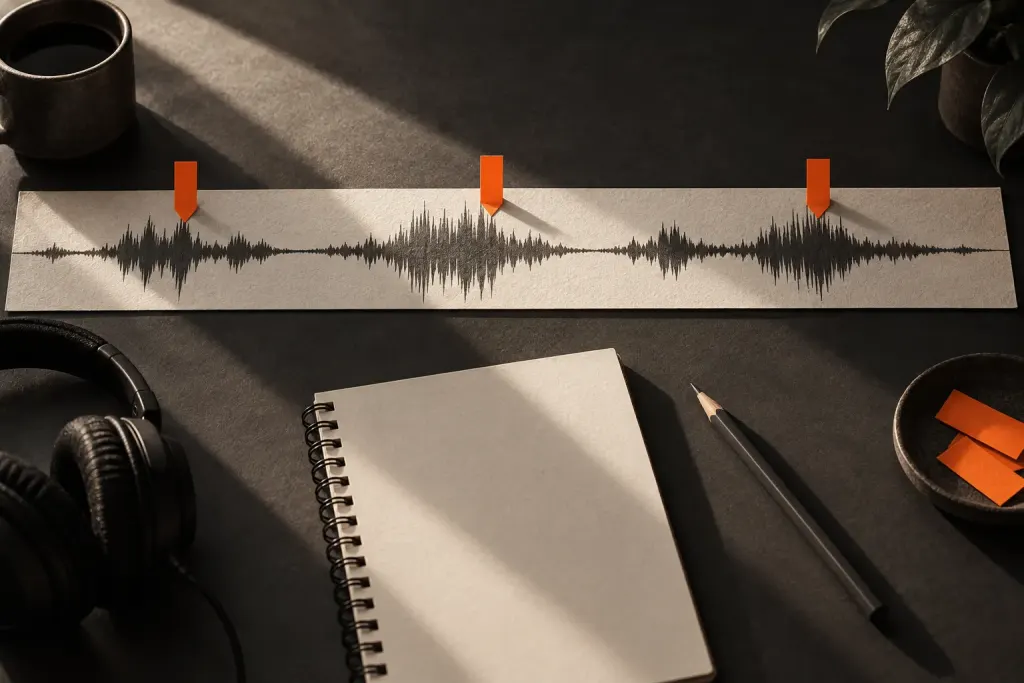
A sentence suddenly stretches across the editing window after you zoom in. It has not become slower: the screen is showing a shorter span of time in greater detail.
The distinction is easiest to check with the timeline ruler. If a clip begins at 10 seconds and ends at 14 seconds, its duration is four seconds whether it occupies a small rectangle or most of the screen. Audacity’s zoom commands control how much of that timeline you see.
Try a view-only check
Open a practice project and note the start and end of a short selection. Use a zoom command, then read the same boundaries again. They should retain their times. Avoid dragging clip edges or applying speed effects during this exercise, since those are different operations.
Zooming in helps locate a detailed edit; zooming out helps see the surrounding sequence. Neither view replaces listening. A visually convenient cut may still interrupt a consonant or remove a meaningful pause.
If the audio really sounds different
Check whether you changed playback speed, stretched a clip or applied an effect rather than assuming zoom caused it. Inspect the relevant controls and undo history in your software version before making further edits.
For a handoff, describe an edit using time positions and its purpose: “Review the pause around 12 seconds.” “The large gap near the right edge” depends on your current zoom and window size, so it is much less useful to another editor.